How to Fix a Touchscreen That Is Not Working (7-Step Diagnostic Workflow)
A methodical hardware and software troubleshooting triage to isolate operating system freezes, charger EMI noise, and digitizer fractures.
Read the touchscreen repair guideTest your smartphone, tablet, or laptop touchscreen online for touch responsiveness, digitizer dead zones, and multi-touch capabilities.
Your browser reports this screen's touch support once the page has loaded.
Your test runs 100% client-side in your browser. Touch coordinates are never transmitted or stored.
Basic mode
Start touching to test
Waiting for input...
Your browser reports this screen's touch support once the page has loaded.
Your test runs 100% client-side in your browser. Touch coordinates are never transmitted or stored.
Touch is one part of the check. Run the mic, speakers, mouse, keyboard and controller tests too, and each result lands on your check sheet in this browser.
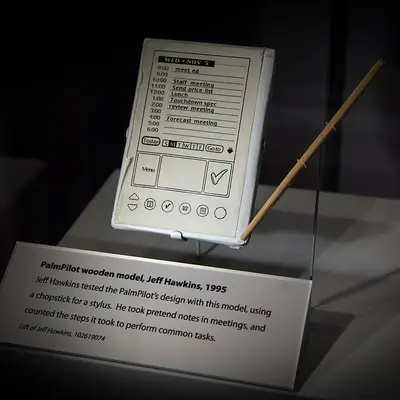
Touchscreens on phones, tablets and laptops.
7 tests

Microphones, speakers and headphones.
2 tests
Mice, keyboards and click speed.
8 tests
Gamepads and game controllers.
1 test
Photos via Wikimedia Commons: Jeff Hawkins' Wooden PalmPilot Model by Atomic Taco, CC BY-SA 2.0; Shure mikrofon 55S by Holger Ellgaard, CC BY-SA 3.0; Blake Patterson IBM Model M Keyboard space saver 1 by Blake Patterson, CC BY 2.0; Atari XE joystick (colour restored) by Bilby, CC BY 3.0.
Basic mode
Start touching to test
First, put a finger on the canvas.
Dead zone mode
13 of 24 cells
Then swipe until every square fills.
Dead zone mode
23 of 24 cells, one dead spot
Any square that stays empty is your dead zone.
Check sheet
Every result stays on your check sheet.
Every test runs inside your browser, reads your fingers, your micand your keys, and sends none of it anywhere.
An online touch screen test is a browser-based hardware diagnostic utility that inspects the health and functionality of your display's touch digitizer. Whether you've just repaired your phone, dropped your tablet on a hard floor, or noticed erratic typing behavior, a touchscreen test verifies that your device is accurately registering touch inputs across every physical quadrant.
Because TouchScreenTester executes entirely within modern web rendering engines via standardized W3C Touch and Pointer specifications, you can perform comprehensive hardware diagnostics across iOS, Android, Windows, and ChromeOS without installing untrusted third-party apps.
Our diagnostic suite is engineered to identify the most common physical and electronic touch failures encountered in modern consumer hardware:
Different operating systems process touch input through distinct architectural layers. Explore our specialized testing suites:
A methodical hardware and software troubleshooting triage to isolate operating system freezes, charger EMI noise, and digitizer fractures.
Read the touchscreen repair guideThe science of charger electromagnetic interference (EMI), Indium Tin Oxide micro-fractures, and static electricity.
Read the ghost touch guideUnderstand screen anatomy: cover glass, ITO capacitive sensor grid, OCA adhesive, and OLED/LCD matrices.
Read the screen anatomy guideTouchScreenTester utilizes standardized W3C Touch Events and Pointer Events APIs supported by modern web browsers. When your finger or stylus contacts the screen, the display's touch controller IC sends hardware interrupts to the operating system, which dispatches coordinate, pressure, and multi-point events to our client-side canvas engine in real time.
The tool identifies broken Indium Tin Oxide (ITO) digitizer traces (dead zones), multi-touch point limitations (e.g., stopping after 2 or 5 fingers), coordinate tracking jitter and stair-stepping, touch-to-render input latency, and phantom inputs caused by electrical noise (ghost touch).
Yes. Because modern browsers (Safari on iOS, Chrome on Android, and Edge/Firefox on Windows) conform to universal W3C web input standards, our diagnostic suite operates universally across all operating systems without requiring app installations or manufacturer dialer codes.
Yes, 100%. TouchScreenTester is engineered strictly client-side. All calculations, coordinate mappings, and diagnostic visual feedback execute locally in your device's memory. No touch coordinates, device serial numbers, or diagnostic logs are ever uploaded to any server.
Unresponsive areas (dead zones) are typically caused by physical drop impact micro-cracks in the conductive digitizer grid, a partially unseated flexible printed circuit (FPC) ribbon cable, or software margin bugs like aggressive palm rejection. Use our Dead Zone Grid to map the exact failure pattern.
This is known as 'ghost touch' and is usually caused by electromagnetic interference (EMI) from cheap, ungrounded, or failing AC chargers. The electrical ripple destabilizes the touch controller's ground voltage reference. Unplug the charger to verify if touch returns to normal on battery power.
The digitizer is a transparent electrostatic sensor layer that detects where you touch. The display panel (OLED or LCD) sits beneath it and displays pixels. While both are laminated together in modern screens, a failure in the digitizer affects touch input while the picture remains fully visible.
Yes. Capacitive touch controllers rely on your finger's proximity to alter an electrostatic field. A thick glass protector (especially 0.33mm+ with poor adhesive) insulates the field, raising the required touch threshold. Enable 'Touch sensitivity' or 'Screen protector mode' in your device settings to compensate.